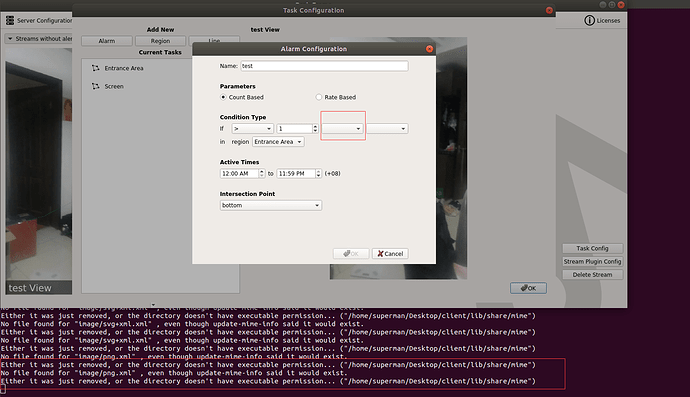
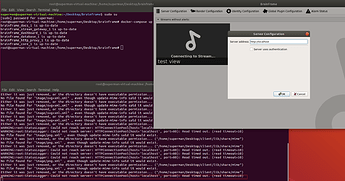
As shown in the picture, please help. Thanks!
Archived from the BrainFrame forum. Posted May 11, 2020. 6 replies · 973 views Translated into English from the original Chinese posts. Read the original
Please note that when the client is run for the first time, the server has no algorithm capsules by default.
Did you download the test capsules separately and copy them into the corresponding folder on the server side? After that you can see detection boxes in the client.
Capsule download:
https://aotu.ai/docs/downloads/ #Capsules
Thanks for the reply. I downloaded two algorithm capsules from the address you gave and put them in the /brainfram/capsules directory, then restarted the server. After starting it again, the options are still not shown.
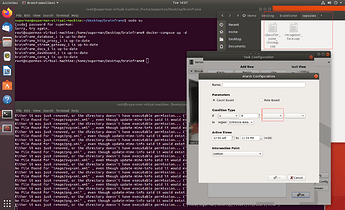
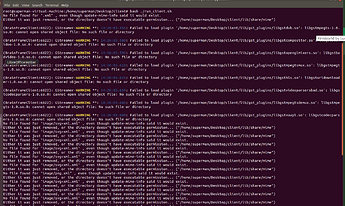
When I started the client it showed some warnings. Are these warnings the cause?
I noticed that the two capsules you chose, behavior detection and identity recognition, each need the output of another model as input: person detection → behavior detection; face detection → face/identity recognition. See Required Input → Output in the picture below.
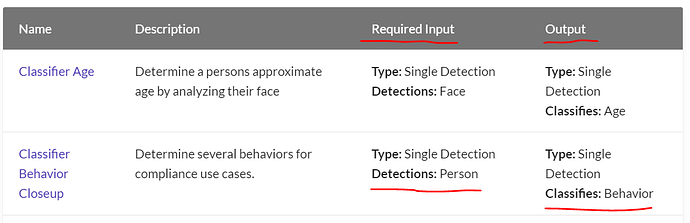
So I suggest downloading “Detector People And Vehicles Fast” and
Detector Face Fast
With these four capsule models, they will fuse automatically and start working.
By the way, once a capsule is placed in the /brainfram/capsules directory, the program does not need to be restarted: it finishes loading automatically in a dozen or so seconds, as a hot-plug process.
Thanks for the reply. After downloading the other two as you suggested, they are shown successfully, but now I can't connect to the server. What is the reason?
Perhaps there was an issue loading the capsules. Would you mind sending us the server logs?
If you’re using v0.24.x:
docker-compose logs api > logs.txt
If you’re using v0.25.x:
docker-compose logs core > logs.txt